# Your first trade

**Step 1 - Choose an asset** \
On the trading interface at app.atomic.green, select the asset pair you want to trade from the market list at the top of the screen.

<figure><img src="https://1501114294-files.gitbook.io/~/files/v0/b/gitbook-x-prod.appspot.com/o/spaces%2FKxyg69MYyqrbm3PMHVcp%2Fuploads%2FoyZj3c5rapU9JW3734zA%2F3.png?alt=media&#x26;token=6570b5cf-289a-469f-8fb3-af164deb722e" alt=""><figcaption></figcaption></figure>

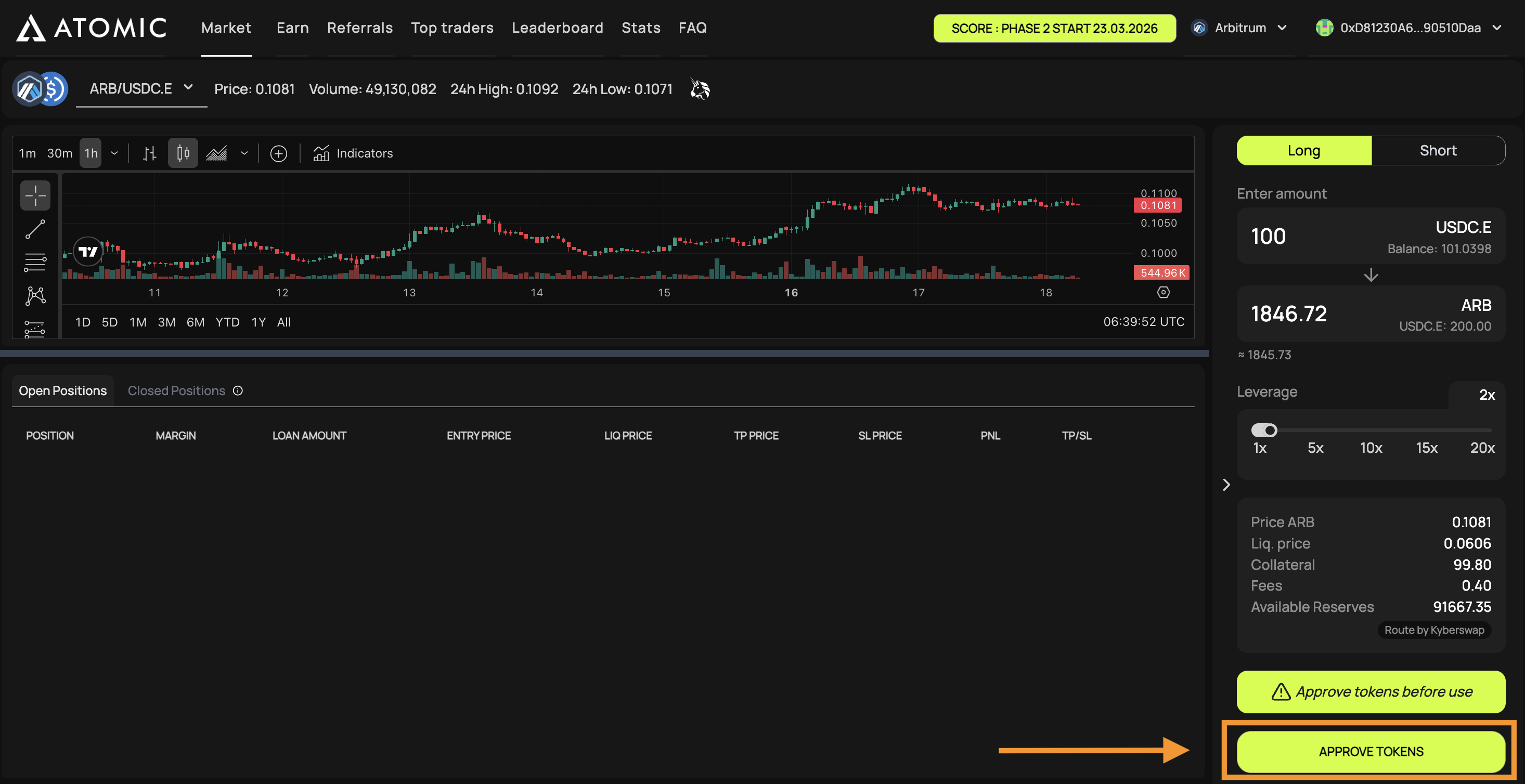
**Step 2 - Approve tokens** \
Before your first trade, you will need to approve token spending. Click **Approve tokens** and confirm in your wallet. This is a one-time step per asset.

<figure><img src="https://1501114294-files.gitbook.io/~/files/v0/b/gitbook-x-prod.appspot.com/o/spaces%2FKxyg69MYyqrbm3PMHVcp%2Fuploads%2FGO2o9myI2u6mK0FU8VNh%2F4.png?alt=media&#x26;token=bb8880b9-0e1c-4563-a133-59a2dfb0deeb" alt=""><figcaption></figcaption></figure>

**Step 3 - Choose direction** \
Select **Long** if you expect the price to rise, or **Short** if you expect it to fall.

<figure><img src="https://1501114294-files.gitbook.io/~/files/v0/b/gitbook-x-prod.appspot.com/o/spaces%2FKxyg69MYyqrbm3PMHVcp%2Fuploads%2FnIekVWanfj31HqukBSaO%2F5.png?alt=media&#x26;token=940d1b14-1aca-4c77-a4eb-d9cfeb808326" alt=""><figcaption></figcaption></figure>

**Step 4 - Enter amount** \
Enter the amount of USDC you want to use as margin.

<figure><img src="https://1501114294-files.gitbook.io/~/files/v0/b/gitbook-x-prod.appspot.com/o/spaces%2FKxyg69MYyqrbm3PMHVcp%2Fuploads%2FQRu4cV2OggdJbk2Epl0G%2F6.png?alt=media&#x26;token=ec5c76a9-20f7-457d-aed9-f1042bcf683c" alt=""><figcaption></figcaption></figure>

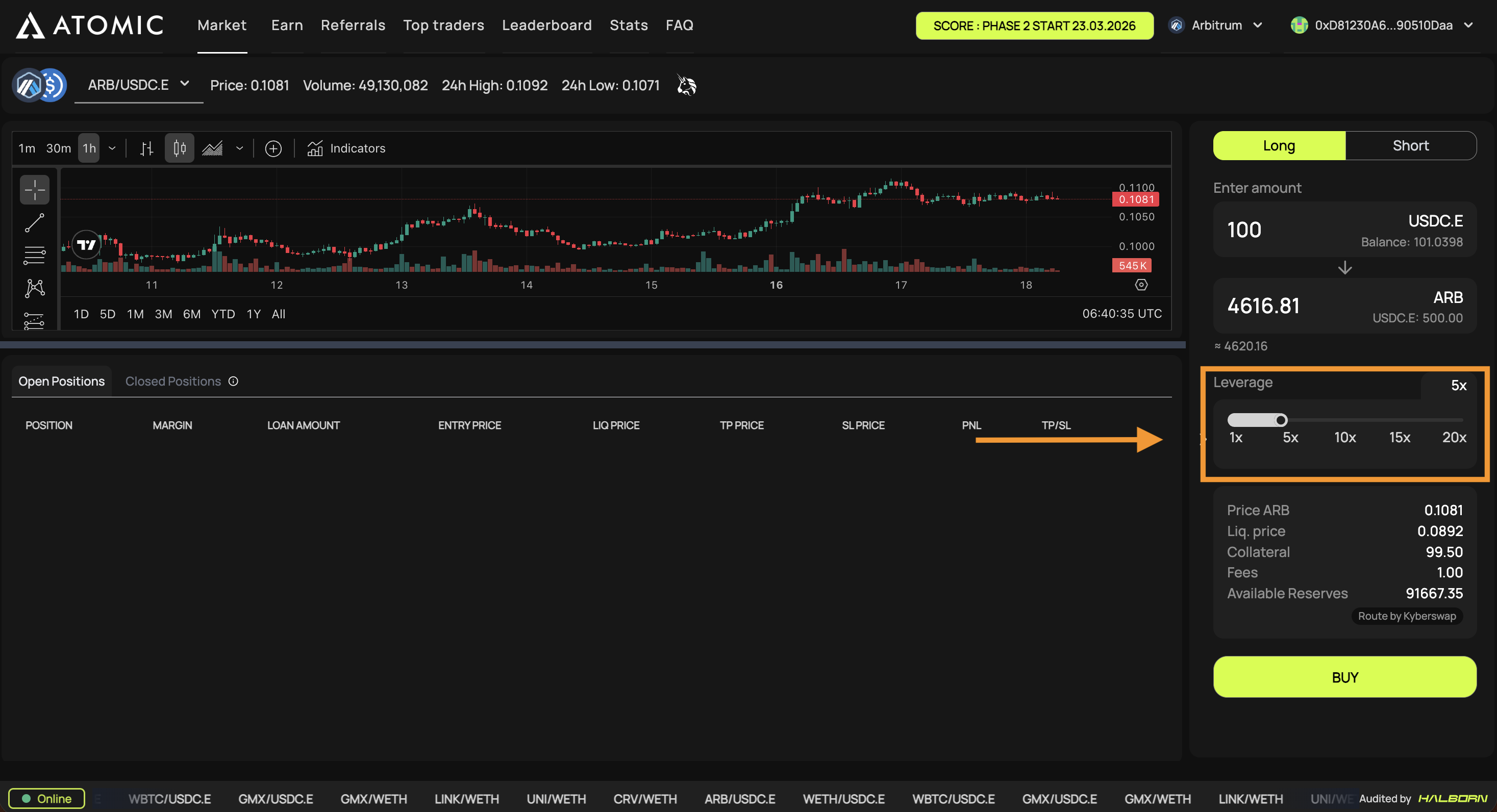
**Step 5 - Set leverage** \
Choose your desired leverage level.

<figure><img src="https://1501114294-files.gitbook.io/~/files/v0/b/gitbook-x-prod.appspot.com/o/spaces%2FKxyg69MYyqrbm3PMHVcp%2Fuploads%2Fsp4XdubJCnaAbZyYA2rr%2F7.png?alt=media&#x26;token=99557073-9de3-4870-aa4a-ebec820c0f03" alt=""><figcaption></figcaption></figure>

**Step 6 - Open position** \
Click **Buy** and sign the transaction in MetaMask. Your position is now live and visible in the Open Positions tab.

<figure><img src="https://1501114294-files.gitbook.io/~/files/v0/b/gitbook-x-prod.appspot.com/o/spaces%2FKxyg69MYyqrbm3PMHVcp%2Fuploads%2FE1Ddi0xjQ8MpbTFQkldC%2F8.png?alt=media&#x26;token=f5d25dfc-8769-41a1-994c-6dad68aa3582" alt=""><figcaption></figcaption></figure>

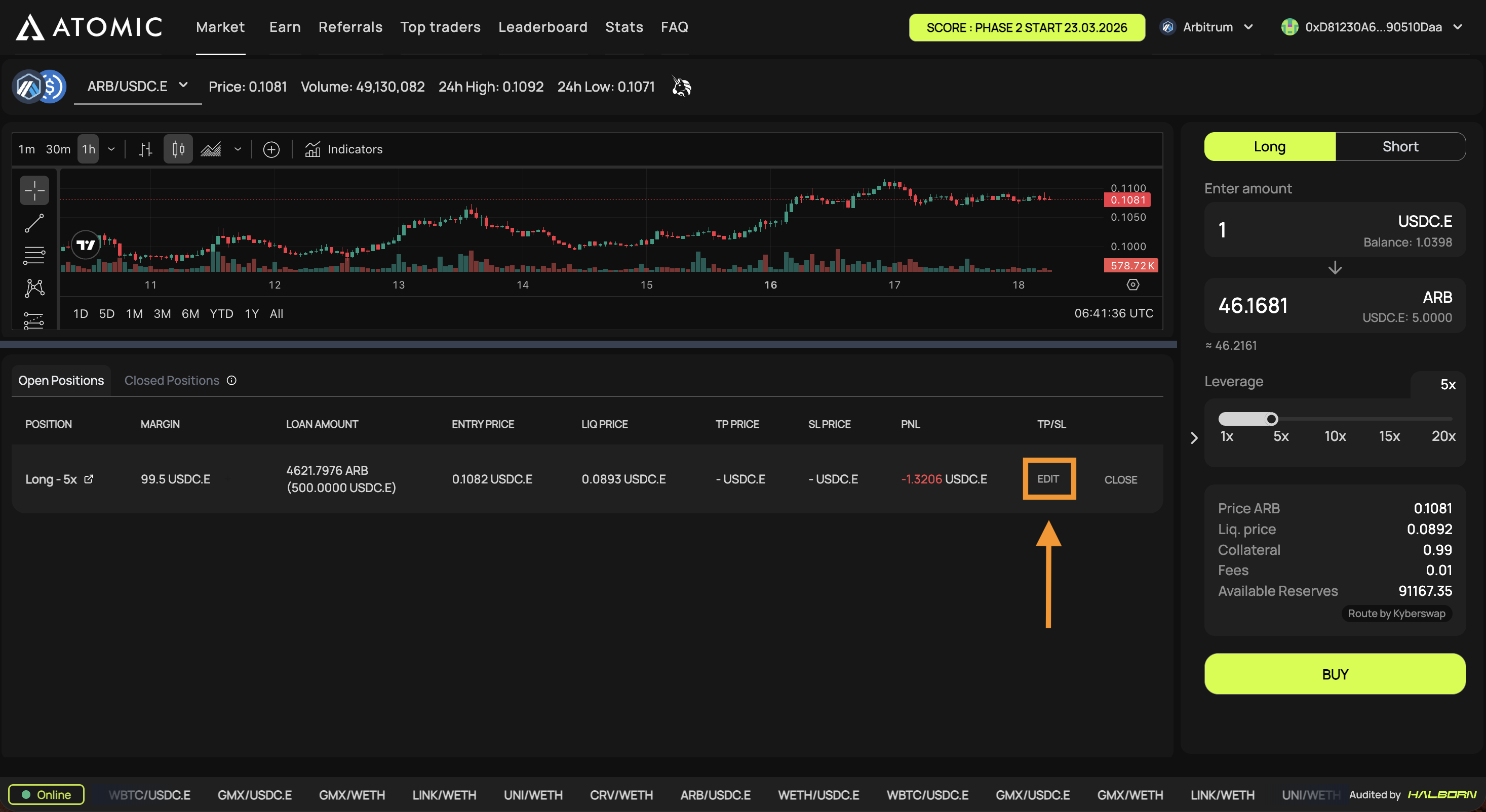
**Step 7 - Set TP/SL (optional)** \
To set a take profit or stop loss, click the **Edit** button on your open position and enter your target levels.

<figure><img src="https://1501114294-files.gitbook.io/~/files/v0/b/gitbook-x-prod.appspot.com/o/spaces%2FKxyg69MYyqrbm3PMHVcp%2Fuploads%2FVpwQvEqqdTytzulqbxr6%2F11.png?alt=media&#x26;token=2d12d2ac-8adf-4e00-a811-906d00bcffa1" alt=""><figcaption></figcaption></figure>

**Step 8 - Close position** \
When you are ready to close, click **Close** on your position and sign the transaction in MetaMask.

<figure><img src="https://1501114294-files.gitbook.io/~/files/v0/b/gitbook-x-prod.appspot.com/o/spaces%2FKxyg69MYyqrbm3PMHVcp%2Fuploads%2FOPAyzeeyQ42sE30AmhuC%2FScreenshot%202026-03-18%20at%2008.00.01.png?alt=media&#x26;token=436f7654-68c2-48b8-8a7f-b6d0a681d562" alt=""><figcaption></figcaption></figure>